Accessibility
Accessibility features and TalkBack / VoiceOver support
Overview
The accessibility Bridge lets you control TTS (text-to-speech), STT (speech-to-text), haptic feedback, and the accessibility panel from JavaScript on your web page. Both Android (TalkBack) and iOS (VoiceOver) support the same Bridge API.
The only injected global is window.unveilyBridge (lowercase). Accessibility features live under the tts, stt, haptic, and accessibilityPanel namespaces.
| Feature | Namespace | Android | iOS |
|---|---|---|---|
| TTS | unveilyBridge.tts | ✓ | ✓ |
| STT | unveilyBridge.stt | ✓ | ✓ |
| Haptic | unveilyBridge.haptic | ✓ | ✓ |
| Accessibility panel | unveilyBridge.accessibilityPanel | ✓ | ✓ |
Bridge readiness
window.unveilyBridge is registered before the page loads, but the namespaces are created after the glue script is injected. If you call accessibility APIs at mount time in an SPA (useEffect/onMounted), wait for the unveilyGlueReady event first. Calls triggered by user actions (e.g. a button click) do not need this.
window.addEventListener('unveilyGlueReady', () => {
  window.unveilyBridge.tts.speak("Hello, world", "en-US");
}, { once: true });
Enable the Module
The accessibility module must be enabled in assets/config.json.
{
  "modules": {
    "accessibility": {
      "enabled": true,
      "topDownPanel": true
    }
  }
}
TTS (Text-to-Speech)
The unveilyBridge.tts methods take positional arguments — they do not take an options object.
speak
Reads text aloud. The first argument is the text to read, the second is the language code.
window.unveilyBridge.tts.speak("Hello, world", "en-US");stop
Stops the currently playing TTS.
window.unveilyBridge.tts.stop();pause / resume
Pauses or resumes TTS playback.
window.unveilyBridge.tts.pause();
window.unveilyBridge.tts.resume();
setSpeed
Sets the TTS playback speed. 1.0 is the normal rate and is clamped to the 0.1–4.0 range.
window.unveilyBridge.tts.setSpeed(1.0); // 1.0 = normal, clamped to 0.1–4.0Playback State Event
TTS playback state changes are delivered to the global function window.onTTSStateChanged.
window.onTTSStateChanged = function (result) {
  // result.state: 'started' | 'completed' | 'paused' | 'error'
  console.log(result.state);
};
Supported Languages
TTS recognizes ko-KR, ja-JP, and zh-CN; any other value falls back to English (en-US).
| Code | Language |
|---|---|
"ko-KR" | Korean |
"ja-JP" | Japanese |
"zh-CN" | Chinese (Simplified) |
"en-US" | English (default) |
Calling getUserMedia({ audio: true }) immediately after TTS playback completes works correctly. The SDK manages audio focus automatically around TTS playback, so the microphone can be opened without any delay.
STT (Speech-to-Text)
unveilyBridge.stt takes only a language code as a positional argument. Results and errors are delivered through global functions (window.onSTTResult, window.onSTTError) — not through callback parameters.
start
Starts speech recognition.
window.unveilyBridge.stt.start("en-US");

window.onSTTResult = function (result) {
  // result.isFinal === false means a partial (real-time) result
  console.log(result.text, result.isFinal);
};

window.onSTTError = function (error) {
  console.error(error.code, error.message);
};
Object shapes delivered
// window.onSTTResult(result) — isFinal: false means a partial result
{ "text": "recognized text", "isFinal": true }

// window.onSTTError(error)
{ "code": "PERMISSION_DENIED", "message": "..." }
stop
Stops speech recognition.
window.unveilyBridge.stt.stop();Required Permission — Microphone
STT requires microphone permission.
| Platform | Permission |
|---|---|
| Android | RECORD_AUDIO — uncomment it in the manifest to enable |
| iOS | Declare NSMicrophoneUsageDescription and NSSpeechRecognitionUsageDescription in Info.plist |
On iOS, the system microphone permission prompt is automatically displayed on the first STT call.
Haptic (Haptic Feedback)
unveilyBridge.haptic requires settings.haptic to be enabled.
vibrate
Vibrates for the specified duration (ms). Pass the milliseconds as a positional argument.
window.unveilyBridge.haptic.vibrate(200);pattern
Runs a vibration pattern. Pass a [wait, vibrate, wait, vibrate, ...] array as a JSON string.
// JSON string: [wait, vibrate, wait, vibrate, ...]
window.unveilyBridge.haptic.pattern("[0, 100, 50, 200]");
impact
Runs an impact vibration at a predefined intensity.
On iOS, UIImpactFeedbackGenerator is used; on Android, VibrationEffect is used.
window.unveilyBridge.haptic.impact("medium"); // "light" | "medium" | "heavy"Accessibility Panel
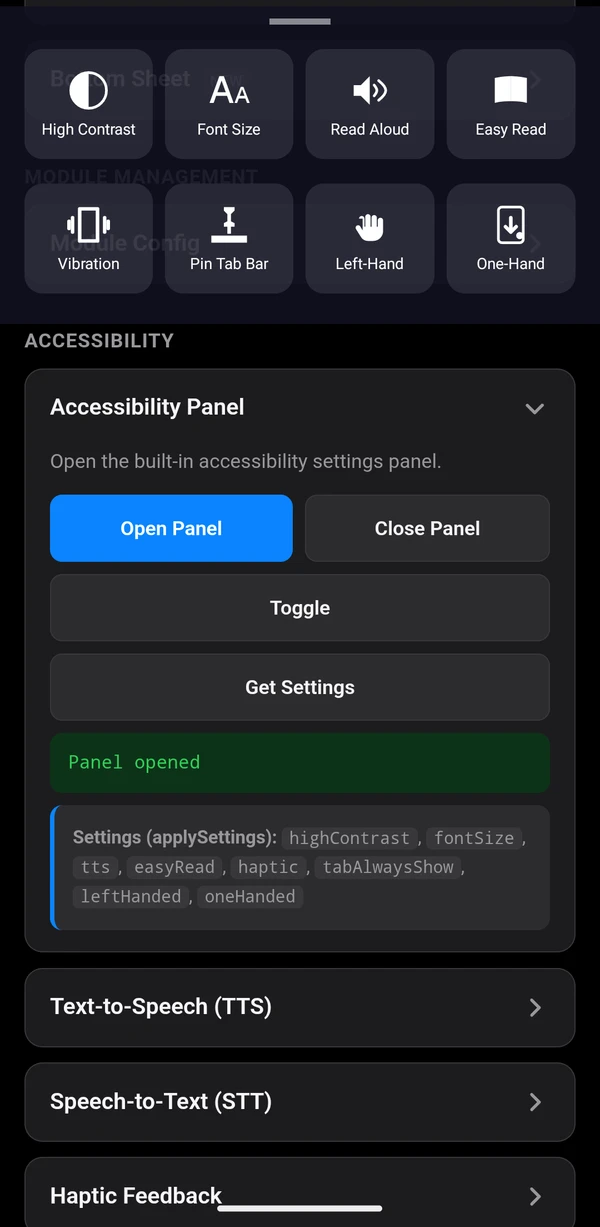
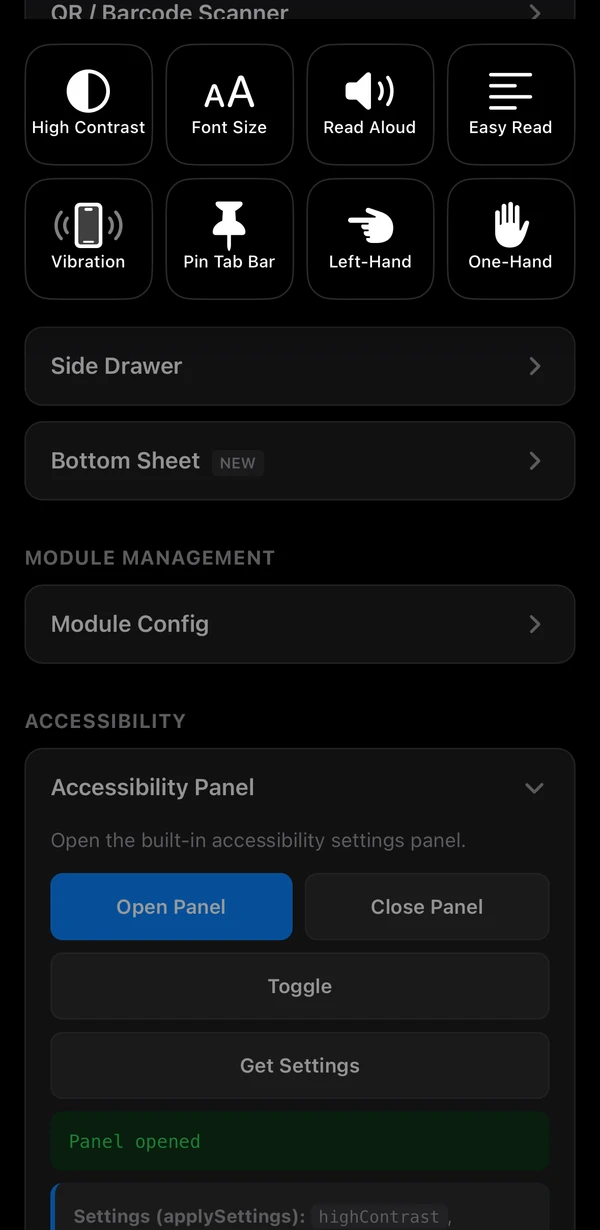
A panel UI where users can directly adjust accessibility options, controlled through the unveilyBridge.accessibilityPanel namespace (the alias unveilyBridge.accessibility also works). It is enabled via modules.accessibility.enabled in config.json.
When the panel opens, Android automatically dispatches TYPE_WINDOW_STATE_CHANGED and iOS dispatches UIAccessibility.screenChanged, so TalkBack/VoiceOver recognizes it immediately.
open / close / toggle
window.unveilyBridge.accessibilityPanel.open();
window.unveilyBridge.accessibilityPanel.close();
window.unveilyBridge.accessibilityPanel.toggle();
getSettings
Reads the current accessibility settings. Pass a callback function name as a string; if omitted, the default is onAccessibilitySettingsLoaded.
window.unveilyBridge.accessibilityPanel.getSettings("onAccessibilitySettingsLoaded");

window.onAccessibilitySettingsLoaded = function (settings) {
  console.log(settings.fontSize);      // "normal" | "large" | "extraLarge"
  console.log(settings.highContrast);  // boolean
};
applySettings
Applies settings programmatically. Pass a JSON string with the same fields as getSettings.
window.unveilyBridge.accessibilityPanel.applySettings(JSON.stringify({
  highContrast: true,
  fontSize: "large",
  tts: true,
  easyRead: false,
  haptic: true,
  tabAlwaysShow: false,
  leftHanded: false,
  oneHanded: false
}));
Settings Object
Items the user can adjust in the panel, shared by getSettings and applySettings.
| Setting Key | Type | Description |
|---|---|---|
highContrast | boolean | High contrast mode |
fontSize | "normal" | "large" | "extraLarge" | Font size |
tts | boolean | TTS enabled |
easyRead | boolean | Easy Read (switch to simplified layout) |
haptic | boolean | Haptic feedback enabled |
tabAlwaysShow | boolean | Always show tab bar (disable auto-hide) |
leftHanded | boolean | Left-handed mode |
oneHanded | boolean | One-handed mode |
Setting modules.accessibility.topDownPanel: true in config.json displays the panel as a slide-down panel from the top of the screen.